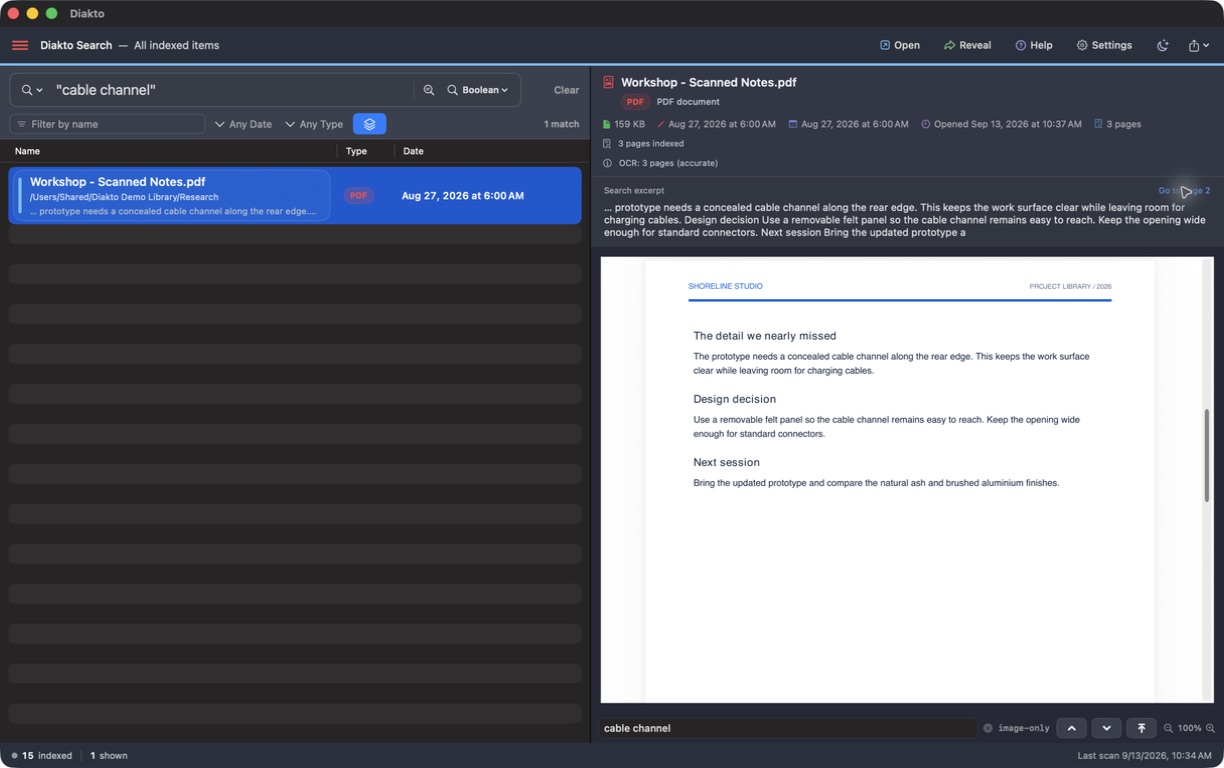
Why some PDFs need OCR
A PDF may contain selectable text, pictures of pages, or a mixture of both. Diakto reads usable text directly. Image-only pages need optical character recognition, or OCR, to turn the words in those pictures into searchable text.
Diakto performs this recognition on your Mac. It saves recognized words and page progress in its local index. It does not add a text layer to the original PDF, rewrite its pages, or upload the document to a search service.
Find a detail in a scanned PDF
- Select a folder of PDFs. Open Settings → Folders → Add Folder. If the files are in a cloud folder, make the chosen PDFs available offline first.
- Let indexing and OCR begin. Text already read can become searchable while other pages are still being processed. A finished folder scan does not necessarily mean all background OCR is complete.
- Start with distinctive words. A short name or phrase is usually easier to check than a common word. In the example above, the query is
"cable channel". - Read the excerpt and page. Select the result and use Go to page when available. Check the original page to confirm the recognized words and their context.
- Check coverage if something is missing. Look at the document’s indexing notes and the files-awaiting-OCR indicator. More pages may still be waiting for recognition.
Understand background progress
OCR saves completed work so interrupted documents can resume. It yields while you type or change previews, and it may pause during Low Power Mode or when your Mac is hot. Pause Indexing also pauses OCR; Resume Indexing continues it.
The files awaiting OCR count refers to files with more work, not the number of remaining pages. Click the indicator to see the current file and page progress. A partially processed document can appear in results before all its pages are searchable.
Searchable text and visible highlights
Finding a scanned page does not always mean Diakto can highlight the matching words on that page. Highlighting within the PDF relies on an embedded text layer. An image-only page can be searchable through the local OCR index while its original appearance remains unchanged.
The Go to page link appears when a match can be mapped reliably. If it is absent, use the excerpt and the preview to locate the passage. When scans are faint, skewed, or otherwise difficult to read, recognition can miss or misread words. Check the source before relying on a result.
If an expected phrase does not appear
Confirm that the file is downloaded and included in a selected folder. Check remaining OCR work, clear restrictive filters, and try one distinctive word instead of an exact phrase. A single recognition error can prevent the full quoted phrase from matching.
For suitable plain-word searches with few results, Diakto may show labeled possible OCR matches. This recovery does not apply to quoted phrases or complex Boolean queries. Read the suggested passage before deciding it is the result you want.
See exact phrase and proximity search for query examples, or contact support with a small fictional example if you need help. Standalone image OCR is a separate optional group in Settings → File Types → Image Text (OCR).