WORDPERFECT, BUILT IN
Old files.
Useful again.
Search and read formatted WordPerfect documents alongside your PDFs and Word files. No separate office suite or converter to install.
DOCUMENT SEARCH. MADE FOR MAC.
The clause you remember. The filename you don’t. Search years of PDFs, Word and WordPerfect documents—and find words in scans with on-device OCR.
Version 1.0 · 10.5 MB · Free for now
Apple silicon (M1 or newer) · macOS 14 or later
Developer signed and notarized by Apple.
THE PRODUCT FILM
See a search become the right document.
With sound, or without.
Choose a format. See what’s inside.
Find words in PDFs and jump to the matching page. For scanned pages, on-device OCR makes the text searchable in Diakto’s local index, while your original stays untouched.
Scans become searchable as OCR progresses. Highlighting in the PDF requires an embedded text layer.
How to search scanned PDFs.docx & .doc
Search inside Word documents for the clause, name, or phrase you remember. In DOCX files, Diakto reads the body, headers, footers, footnotes, endnotes, and comments.
Older DOC files use your Mac’s document-reading tools. Both formats are included in the Documents group.
How to search an exact phrase.wpd
Search your WordPerfect archive and read formatted previews beside the results. Support is built in, so there’s no separate office suite or converter to install.
Complex layouts and some embedded graphics may look different. If a formatted preview can’t be made, Diakto shows the indexed text.
Search and read WordPerfect files on Mac.xlsx & .xls
Find names, labels, and saved cell values across XLSX worksheets. Search the contents of your spreadsheets alongside the rest of your selected files.
Enable Spreadsheets in Settings → File Types. Older XLS files depend on text available through macOS Spotlight.
Make your document search more precise.pptx & .ppt
Search the slide text and speaker notes inside PPTX presentations. A remembered phrase can lead you back to the deck, even when its filename doesn’t help.
Enable Presentations in Settings → File Types. Older PPT files depend on text available through macOS Spotlight.
Find the phrase you rememberMore of your everyday files
Diakto also supports Pages and OpenDocument files, rich text, HTML, plain text, source code, and supported email files. Optional image OCR can find words in pictures.
Choose additional groups in Settings → File Types. iWork and OpenDocument support depends on macOS Spotlight text. Email attachments and MSG files aren’t indexed.
Explore the search guidesBUILT FOR THE DOCUMENTS YOU KEEP.
An agreement from years ago. A folder of research. A scanned letter with a forgotten filename. Choose your folders, and Diakto helps you find the useful detail inside—without moving or rewriting your originals.
WORDPERFECT, BUILT IN
Search and read formatted WordPerfect documents alongside your PDFs and Word files. No separate office suite or converter to install.
SEARCHABLE SCANS
Find words in scanned PDFs with on-device OCR. It works in the background, saves its progress, and leaves your original pages untouched.
PRECISE SEARCH
Search an exact phrase or find words near each other. Narrow by filename, date or type, then read the matching passage beside your results.
Verified identical copies share a result, with every location a click away. Different drafts stay separate. Nothing gets deleted or moved.
When a search finds little, Diakto can suggest possible matches affected by common OCR mistakes. They’re labeled so you can check the source.
LOCAL BY DESIGN
Choose the folders Diakto can search. Your file index and OCR stay on your computer. Core document search needs no account or cloud upload.
Read our privacy policy
Add your own folders with the macOS folder chooser. Keep working while Diakto builds your index.
Document search works out of the box. Optional AI Search uses available Apple on-device features.
Indexing and OCR store searchable text separately. They don’t rewrite your documents.
A LITTLE KNOW-HOW
Practical guides to older documents, scanned pages, and the words you remember.
Bring an older archive into your search. Learn what formatted previews preserve and where they have limits.
Read the WordPerfect guide SCANNED PDFSUnderstand on-device OCR, check page progress, and see why searchable text does not always mean visible highlights.
Read the scanned-PDF guide EXACT PHRASESUse quotes, nearby words, and filters to find a remembered detail across your selected documents.
Read the precise-search guideBEHIND THE NAME
An old agreement. A scanned letter. A document saved years ago. The words still matter. Diakto helps you find them again.
Diakto echoes diálektos (διάλεκτος), the Greek word behind “dialect,” with roots in speech and conversation.
Explore the word’s origin (opens in a new tab)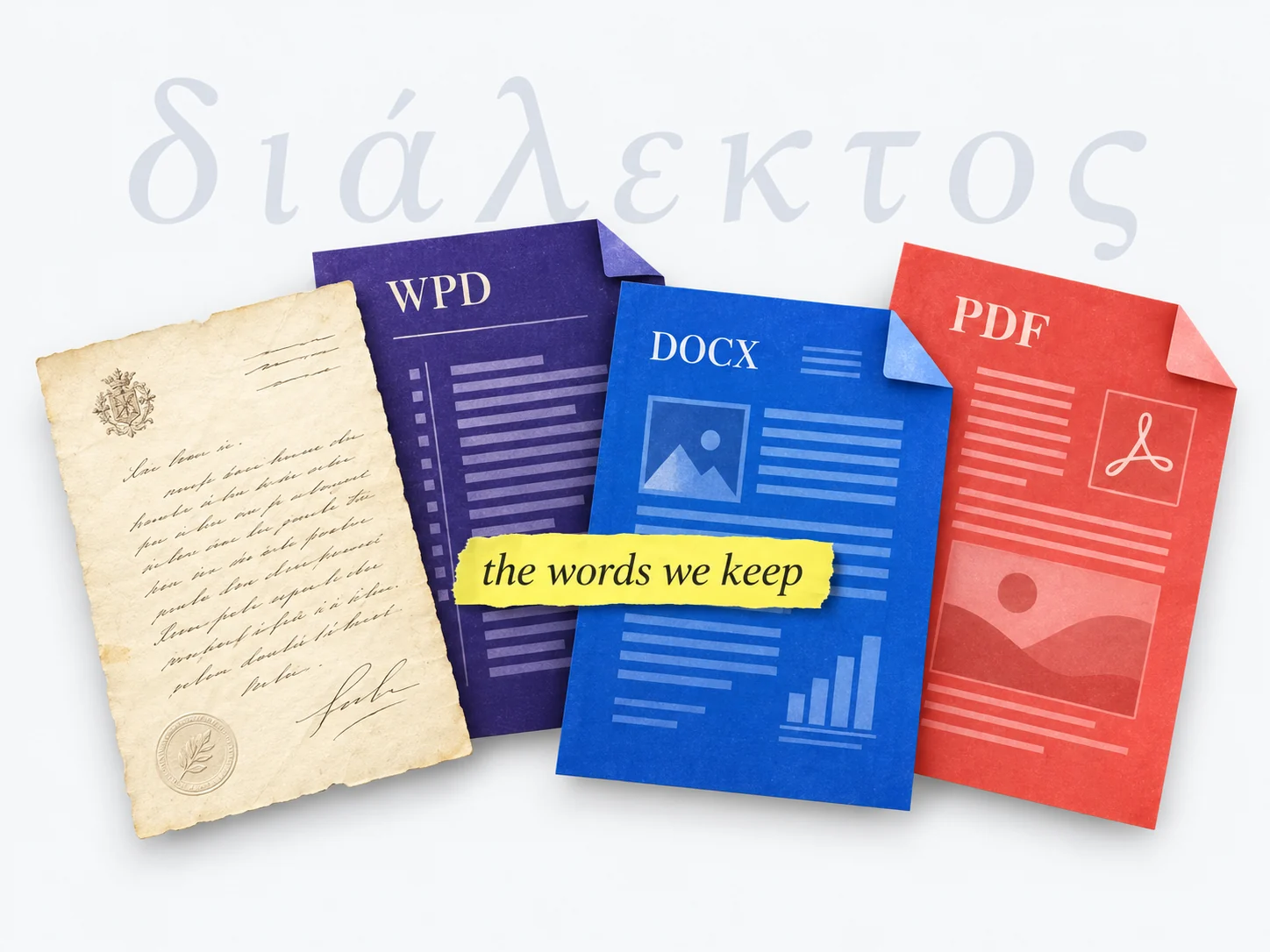
BEFORE YOU GET STARTED
Download the free disk image, open it, and drag Diakto into Applications. Launch it from Applications, then choose Add Folder to select your documents. This download is for Apple silicon Macs (M1 or newer).
This download requires an Apple silicon Mac (M1 or newer) running macOS 14 Sonoma or later. Intel Macs are not supported by this build. Optional Apple Intelligence features require a supported Mac, a compatible version of macOS, and Apple Intelligence enabled.
Yes. Choose Add Folder and select the folders you want to search. The macOS folder chooser grants access. Diakto builds a local index and watches for available file changes.
Diakto can index supported files downloaded to your Mac in folders you select, including Dropbox folders. Online-only files wait until they’re available locally. Diakto does not request bulk downloads.
No. Core file search, previews, and OCR need none of these. AI Search is optional. Diakto does not connect to email accounts or sync mailboxes. Existing Ollama users can optionally use a compatible local model for search ranking. See our privacy policy for details.
OCR makes scanned pages searchable in Diakto’s index. Search results can take you to a matching page. Highlighting inside the PDF depends on the document having an embedded text layer.
FREE DOWNLOAD FOR MAC
No account. No subscription. Your own folders.
Version 1.0 · 10.5 MB · Free for now
Apple silicon (M1 or newer)
macOS 14 Sonoma or later
Intel Macs are not supported.
Developer signed and
notarized by Apple.
Open the download and drag Diakto to Applications.
Launch Diakto, choose Add Folder, and select the folders you want to search.
Search for a name or phrase from your documents. Select a match to read it.
Your first scan builds the index. Results appear as files are processed; scanned PDFs need extra time for on-device OCR.
Installation help