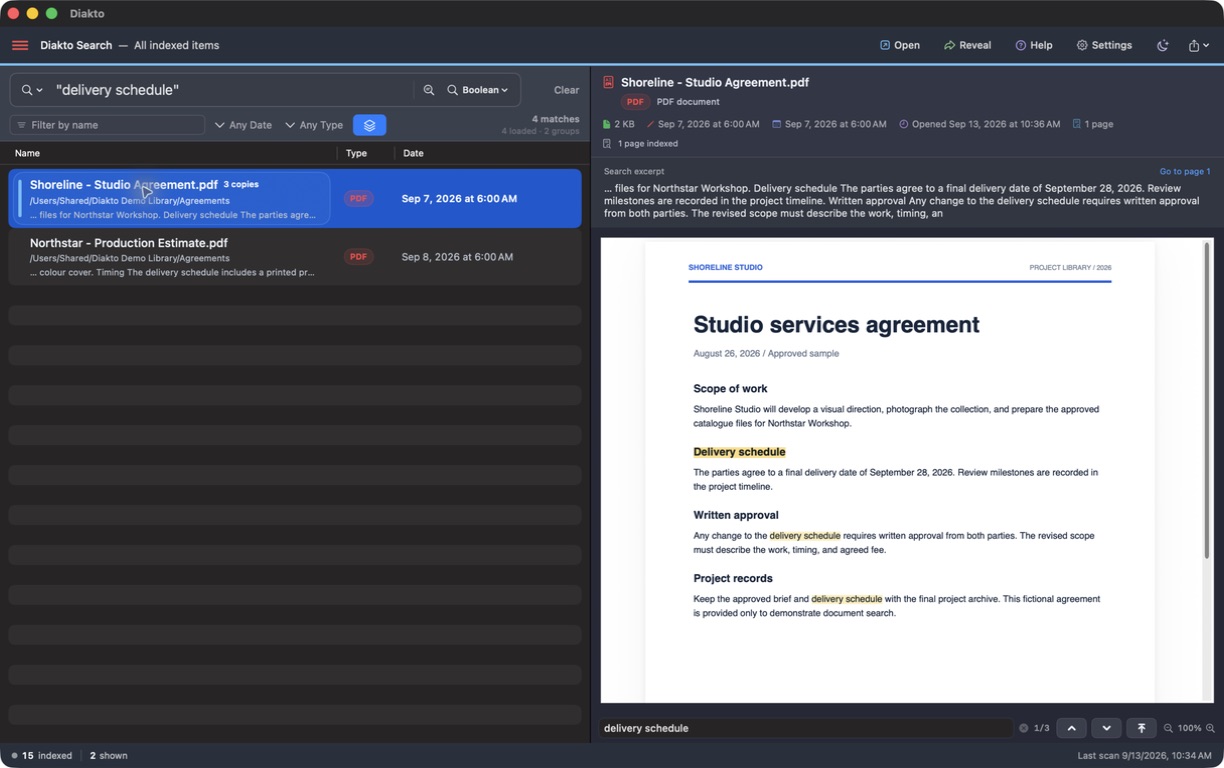
Search a phrase across your files
In Diakto, the main search field searches the index of the folders you selected. That lets you look for a phrase across supported PDFs, Word, WordPerfect, and other enabled document types without opening each file first.
- Add the folders you want to search. Use Settings → Folders → Add Folder. Search coverage grows as files are indexed; scanned pages may need more OCR time.
- Choose Boolean mode. Enter the phrase in straight double quotation marks:
"delivery schedule". This keeps the words together as a phrase. - Apply a filter if needed. Use a remembered filename word, the date filter, or the file-type filter to shorten the list.
- Check the passage. Select a result to read its excerpt and preview. Use Go to page when available, or find within the preview to move through matches.
Choose the right query
| Search | What it asks for |
|---|---|
"delivery schedule" | The quoted phrase, with the words together. |
renewal AND notice | Both terms in the document, without requiring them to be adjacent. |
renewal NEAR/10 notice | The terms within ten intervening words, in either order, in the same indexed field. |
(agreement OR estimate) AND Meridian | Meridian plus either agreement or estimate. |
"delivery schedule" NOT draft | The phrase, excluding matches that also contain draft. |
Use uppercase AND, OR, NOT, and NEAR. Ordinary unquoted words allow word prefixes as you type. Use quotes when you need literal wording, including a numbered title or citation.
When the wording is close, but not exact
Sometimes you remember two useful words but not the sentence between them. renewal NEAR/10 notice can find passages where they appear near each other, even in the opposite order. The proximity control beside the search-mode menu can build this query for you.
The number is the maximum count of intervening words. NEAR without a number uses ten. The terms must occur in the same indexed field: one word in a filename and another in the document body do not satisfy a single proximity pair.
Search the library or the selected preview
The main search field determines which documents appear. ⌘F focuses Find in preview and searches within the document you have already selected. Press Return or use the match-navigation controls to move through its occurrences.
Keeping those two tasks separate is useful when a broad query finds the right document, but you want a different word within it. Open launches the original file, while Reveal shows its location in Finder.
When an exact phrase returns nothing
First check the selected folders, file availability, and active filters. Then try a shorter phrase or a distinctive unquoted word. The text you remember may differ from the indexed wording, or extraction may be incomplete.
For scans, a recognition error can break an otherwise correct phrase. Check OCR coverage and read the original page. See the scanned-PDF guide for progress and recognition limits. For an older archive, see WordPerfect search and previews on Mac.
All these examples use core local document search. An AI download or Microsoft account is not required. Additional file groups, such as spreadsheets and presentations, can be enabled in Settings → File Types.